












Contents
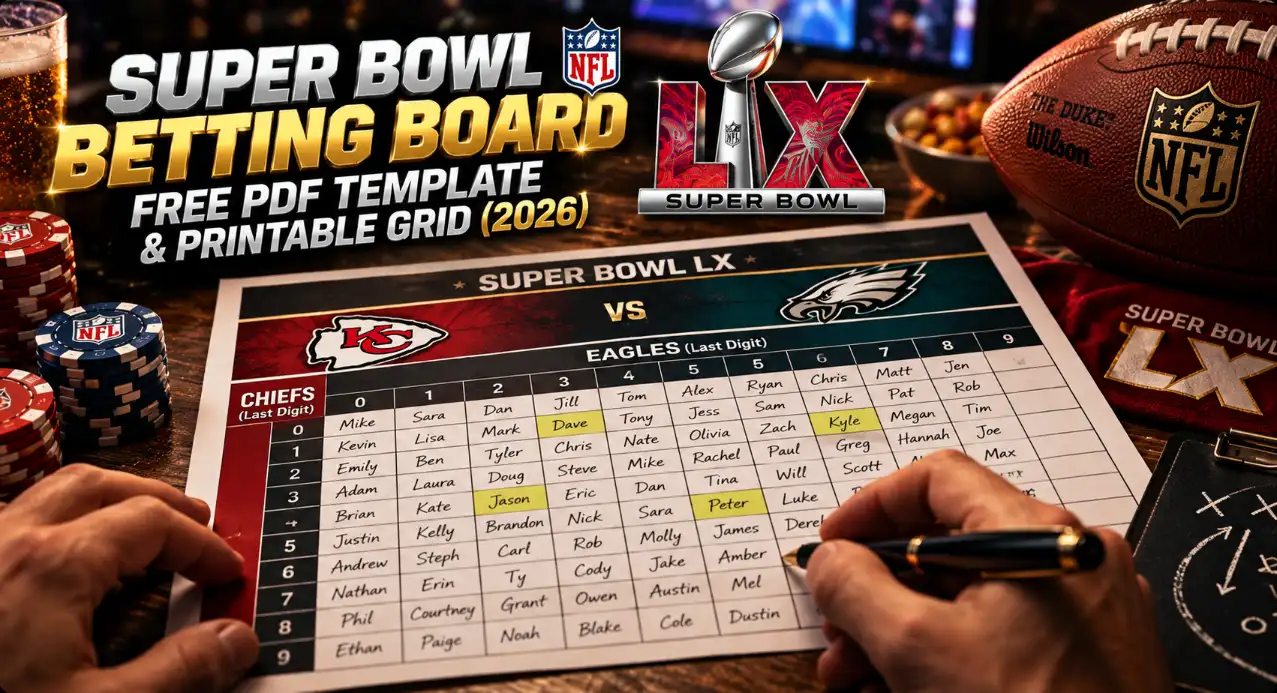
Download a third-party blank PDF for 100 squares, 10×10 or 25 squares, 5×5. For an editable board, use the Excel template provider page, the Google Sheets template provider page, or the DIY Sheets layout below. Our generator handles digit draws and payout calculations; it does not maintain your participant roster.
Football squares uses the last digit of each team's cumulative score at agreed checkpoints. The winning square is where those two digits intersect. Put Team A across the top and Team B down the left, and keep that orientation throughout.
The PDFs are printable files hosted by a third party. The Excel and Sheets links lead to third-party template pages, not our downloads or required paid pool-management services. Copying the Sheets template requires a Google account; the signed-in copy process was not tested. Our generator does not supply Word or Excel files.
Which template should you choose: 100 or 25 squares?
Choose 10×10 for 100 squares with one ordered digit pair per square. Choose 5×5 for 25 squares, each covering four ordered digit pairs.
| Feature | 10×10 template | 5×5 template |
|---|---|---|
| Participant squares | 100 | 25 |
| Headers on each axis | Digits 0–9, each appearing once | Five groups: 0–1, 2–3, 4–5, 6–7, 8–9 |
| Coverage per square | One ordered digit pair | Four ordered digit pairs |
| Prize pool at $10 per square | $1,000 | $250 |
| Printable file | 10×10 PDF | 5×5 PDF |
These prize pools assume every square is paid for and all entry money goes to prizes, with no fees or deductions. A 5×5 board does not require exactly five participants: five people could take five squares each, but other allocations also work.
How do you fill a blank board before drawing digits?
Assign names to squares first, then draw each axis independently. Keep the digit headers blank or covered until all claims are fixed.
A 10×10 board needs 100 name cells plus a separate top header row and left header column. Label Team A above the grid and Team B to its left. Write these terms beside the board before accepting claims:
- Price per square and payment deadline.
- Checkpoints: end of Q1, halftime after Q2, end of Q3 and the final checkpoint.
- Payout shares and the distributable prize pool.
- Whether the last payout uses regulation or the final score including overtime.
- Rules for unsold squares, refunds and rollovers.
- How any unused money will be distributed after the final checkpoint.
For a manual draw, shuffle ten cards numbered 0–9 and place them across the top. Collect and shuffle them again for the left axis. Every digit must appear exactly once on each axis. Do not reject a draw because its arrangement looks less appealing.
The generator fills its digit headers automatically on load and when the grid size changes. Use a blank PDF or separate signup sheet first. If participants can see the generator during signup, physically cover its headers. It has no built-in control to hide digits or save participant names.
Municipal grid excerpt with blank digit headers and fixed square IDs 1, 2, 3, 11, 12 and 13
Excerpt from the Vergennes municipal organizer document. The original is in English and its date is unknown. Numbers 1, 2, 3, 11, 12 and 13 are fixed square IDs, not score digits. This illustrates a grid layout, not a template for a new matchup.
A fixed square ID from 1–100 identifies a physical position and helps record ownership. The digits 0–9 on the axes determine the winning intersection. Keep these separate; randomly drawn positions in a screenshot are not fixed square IDs.
How do you configure our generator?
Set a 10×10 grid, a price of $10, Team A across the top, Team B down the side and weighted payouts of 10/20/30/40. With all squares paid, the generator shows a $1,000 pool, a $100 Q1 payout and a $400 final payout.
Use these exact interface controls:
- Set “Grid Size” to 10×10.
- Enter 10 in “Price Per Square”. Calculations use USD.
- Enter Team A in “Team Across Top” and Team B in “Team Down Side”.
- Set “Payout Structure” to “Weighted — 10/20/30/40”.
- Check “Total Squares” is 100 and “Total Pool” is 1,000.
- Check “Q1 Payout” is 100 and “Final Payout” is 400.
- Only after ownership is fixed, click “Randomize Numbers” once for the final draw.
Local English generator settings showing a 10×10 grid, a USD 10 square price and weighted 10/20/30/40 payouts
Screenshot of the local English generator interface. This example assumes 100 paid squares at $10 each.
The interface displays Q1 and final payouts separately, but it does not display separate Q2 and Q3 payout summaries. Here is the complete schedule for all three options:
| Payout structure | Q1 | Q2: halftime | Q3 | Final |
|---|---|---|---|---|
| Equal: 25/25/25/25 | $250 | $250 | $250 | $250 |
| Weighted: 10/20/30/40 | $100 | $200 | $300 | $400 |
| Halftime and final: 50/50 | $0 | $500 | $0 | $500 |
This example uses a fully paid $1,000 prize pool with no deductions. The generator assumes every square is paid for; it does not track how many squares were actually sold.
Save a fixed snapshot after the final draw. Do not refresh the page, change the grid size or draw again once the board is finalized. Everyone should receive the same final board.
The square colors are only an unquantified interface heuristic. They are not a forecast and do not account for the teams, quarter or particular game. Do not use them to promise a better chance of winning.
How do you copy or print the generator result?
“Copy as Text” copies plain text, while “Print Board” opens the browser's page-print dialog. Neither creates a separate editable participant roster.
The copied text contains blank spaces for names and a fixed English heading, including when used from the Russian interface. Paste it somewhere that supports a monospaced font so the columns stay aligned. Manually match it to your ownership list, then distribute a fixed copy.
To print:
- Click “Print Board”.
- Choose landscape orientation in the browser dialog.
- Adjust margins and scaling in print preview until the grid fits and remains readable.
- Select the pages you need: printing includes the generator page and the rest of the article.
- If your browser offers Save as PDF, use it to preserve the checked result.
This is browser printing, not a built-in export of an isolated PDF template or a guarantee of a one-page result. For a clean blank signup sheet, use the direct PDF links above. The generator also does not provide a shared editable roster, collect payments, accept live scores or identify live winners.
How do you run a printable board?
Download the blank PDF, print it in landscape orientation, record participants and then draw the digits.
- Open the 10×10 or 5×5 PDF.
- Check print preview for the full grid and header spaces.
- Print a copy and confirm that names and headers will be readable.
- Label the teams and attach the written price, payout and checkpoint rules.
- Record square owners and track payments in a separate list.
- Draw both axes after the signup deadline.
- Take a clear photograph of the finalized board and share it with every participant.
Do not quietly change ownership or digits after publication. If there is a recording error, agree on the correction with participants and circulate a replacement final copy with an explanation.
How do you make a shared Google Sheets or Excel board?
For a DIY Google Sheets board, put names in B2:K11, top digits in B1:K1 and left digits in A2:A11. Put team orientation and rules in separate visible notes.
No paid integrations are needed for this workflow:
- Create a new Google spreadsheet.
- Leave B1:K1 and A2:A11 blank until claims close.
- Add borders to B2:K11 for participant names.
- Add a visible note: “Team A across the top; Team B down the left.”
- Open Data → Protect sheets and ranges. Protect the whole sheet, except B2:K11, and restrict editing of protected areas to the organizer. Give participants editing access only to the name area.
- At the deadline, remove the exception and protect the entire sheet for organizer-only editing. Change participants to viewers.
- Shuffle cards numbered 0–9 separately for each axis and enter the draws in the header ranges.
- Use File → Download → PDF to export the finalized sheet. Share that fixed snapshot alongside the view-only sheet link.
Choose an editing restriction, not merely a warning when someone changes a cell. Google Sheets range protection limits editing; it is not secrecy or a security boundary. People with access may still copy information.
Do not fill the headers with ten independent RANDBETWEEN(0,9) calls. Random integers can repeat and omit digits, as explained in Google's RANDBETWEEN documentation. You need a permutation containing all ten digits exactly once.
For Excel, obtain the blank XLSX from the provider page, open it and update the team names and event details. An editable file was verified, but not every formula or automatic winner function. This workflow needs no macros.
The third-party Sheets provider also offers a template copy. A Google sign-in is required; the offer page was checked, but copying after sign-in was not. The DIY layout above does not depend on that service.
How does a 5×5 board work, including payouts?
Each axis on a 5×5 board has five digit groups: 0–1, 2–3, 4–5, 6–7 and 8–9. Each square covers four ordered pairs because it combines two digits from each team.
For Team A 17–Team B 14, find 6–7 across the top and 4–5 down the left. That square covers 6–4, 6–5, 7–4 and 7–5; the matching pair is 7–4. Draw the order of the five groups independently on each axis after ownership is fixed.
Local 5×5 grid crop showing the 6–7 top group and 4–5 left group
Crop of the first two rows and two columns of a real 5×5 board in the local English interface; the full original screenshot was saved. The 6–7 top group and 4–5 side group identify the intersection for Team A 17–Team B 14, not fixed square IDs.
At $10 per square, all 25 paid squares produce a $250 prize pool with no deductions:
| Schedule | Q1 | Halftime | Q3 | Final | Total |
|---|---|---|---|---|---|
| Equal, exact manual calculation | $62.50 | $62.50 | $62.50 | $62.50 | $250 |
| Weighted: 10/20/30/40 | $25 | $50 | $75 | $100 | $250 |
The generator rounds individual payouts to whole dollars. With a $250 pool split equally across four checkpoints, each payout is $62.50, but the generator rounds each one to $63. The visible summary shows only the Q1 and final payouts, both at $63. All four calculated payouts total $252—$2 more than the pool. Write down exact payments of $62.50 each, or agree on another rounding allocation that totals $250, before accepting claims.
Five participants taking five squares each fill the board. Equal square counts do not establish equal chances after the digits have been drawn, however. Do not present the arrangement as a forecast of the game.
How do you identify winners and settle payouts?
At each agreed checkpoint, use the last digit of each team's cumulative score, find the intersection and pay the square's owner the scheduled amount.
If Team A across the top has 17 and Team B down the left has 14, the 10×10 winning square is under top digit 7 and beside left digit 4. Use the score accumulated since kickoff, not just points scored during that quarter. On a 5×5 board, use the corresponding digit groups.
The same square or participant can win more than once. A repeated intersection is not a reason to redraw the board.
For each payment, record:
- Checkpoint and cumulative score.
- Last score digits and winning square.
- Owner's name.
- Amount due and confirmation of payment.
The payout tables assume every square is paid for and there are no deductions. If only 80 squares on a 10×10 board are paid at $10 each, the actual prize pool is $800 and equal payouts are $200 each. The generator still shows $1,000 for a 10×10 board priced at $10 because it has no sold-square count.
Before accepting claims, decide what happens when an unsold square wins: a refund, rollover or another agreed distribution. Also specify how unused funds are settled after the final checkpoint. A rollover rule alone does not resolve money left when there is no next checkpoint.
Choose in advance whether the last payout uses the end of regulation or the final score including overtime. There is no universal default for every pool. For more on score-digit intersections, see our football squares rules.
What should you check before kickoff?
Start only after participants have the finalized board and clear written payout terms.
- Choose 100 or 25 squares.
- Label Team A across the top and Team B down the left.
- Fix ownership before drawing digits.
- Check each axis for missing or repeated digits or groups.
- Record the price, deadline and actual money collected.
- Make sure payouts total no more than the distributable pool and resolve rounding.
- Set overtime, unsold-square and unused-fund rules.
- Share the final photograph or PDF with everyone.
- Do not redraw after finalization.
For cash-entry games, check local official requirements; do not assume every home pool is automatically permitted. The same score-based activity can also be played without cash entry fees.
Frequently Asked Questions
The direct PDF links in this guide do not require an account. You need a Google account to create your own Google Sheets board or copy the third-party Sheets template. The provider's authenticated copy process was not tested.
This guide does not include a verified Word download. You can manually create an 11×11 table: 100 cells for names, a top row for digits and a left column for digits. Put team names and payout rules outside the table.
Base payouts on money actually collected, not the board's full capacity. Before accepting claims, set rules for winning unsold squares, refunds, rollovers and the final distribution of unused funds.
Keep a fixed copy after ownership and digits are finalized: photograph the paper board or save a PDF from your spreadsheet or browser, where available. Check print preview because the generator prints the page, not just an isolated grid.
Evgeniy Volkov
Verified ExpertFullstack developer with a background in mathematics. I build the calculators and game-style tools on ToolsGambling with Pixi.js and modern web tech, and every result uses transparent probability formulas you can verify yourself.